Capture the Ghost was a CTF I made challenges for. How we tried to make it hard for AI agents to solve is in its own post.
Challenges Writeup
1. I Hear Him
This was my favourite challenge that I made. It looks like a lot of noise at first, but the whole thing comes down to three simple ideas stacked on top of each other: a spectrogram, an old phone keypad and a little patience.
You get a single audio file. Here is the full path from the file to the flag:
1. Look at the audio
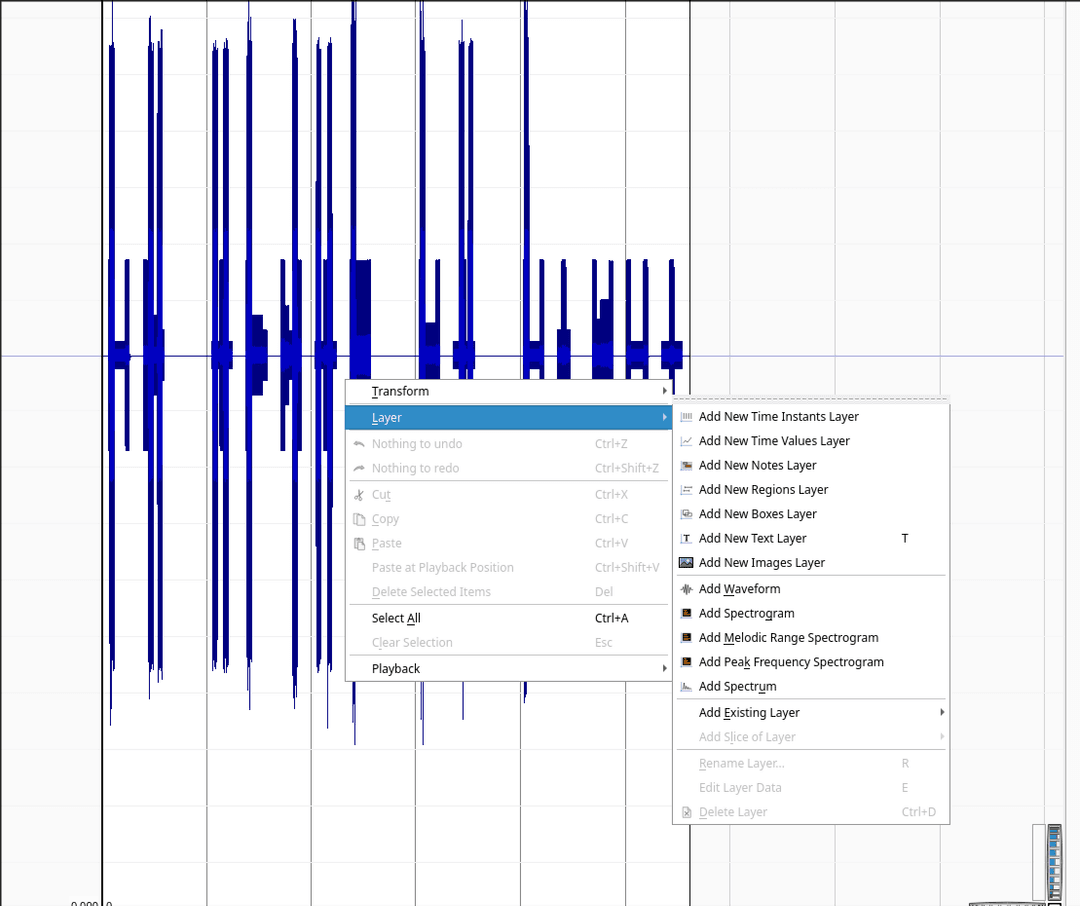
Open the file in Audacity or Sonic Visualiser. The waveform is just a series of short beeps with gaps between them. Nothing more to learn from this view, so switch to a spectrogram. In Sonic Visualiser that is right click, Layer > Add Spectrogram. In Audacity, open the track menu and pick Spectrogram.
2. The spectrogram
Now the beeps turn into a picture:
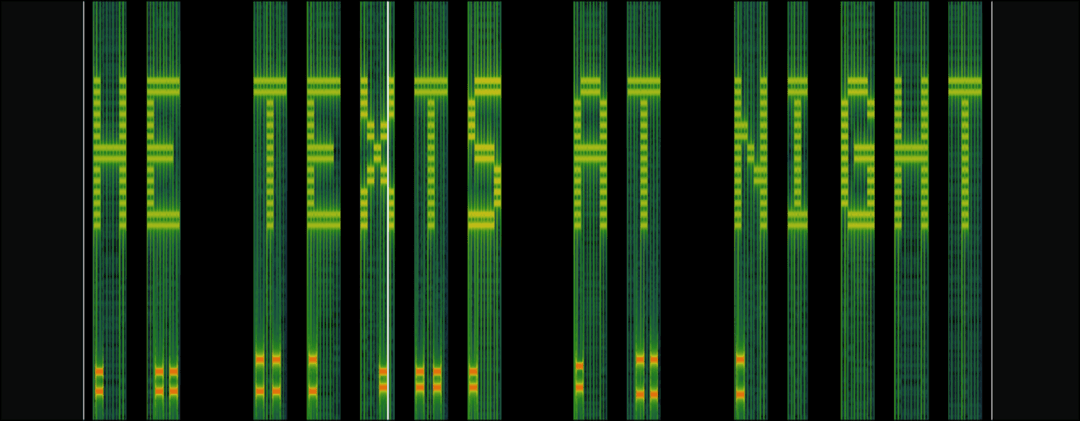
The big text at the top looks like the answer, but it is nothing. Ignore it. The part that matters is the pairs of thin lines at the bottom. Every burst has exactly two lines, and each pair sits at a slightly different height.
3. It sounds like an old phone
Play the file. Those beeps sound like someone dialling on an old phone keypad, and that is what they are: DTMF (dual tone multi frequency). Every key on a phone pad plays two tones at once, one for its row and one for its column. That is why every burst had two lines.
Search up the DTMF frequencies and you get this table:
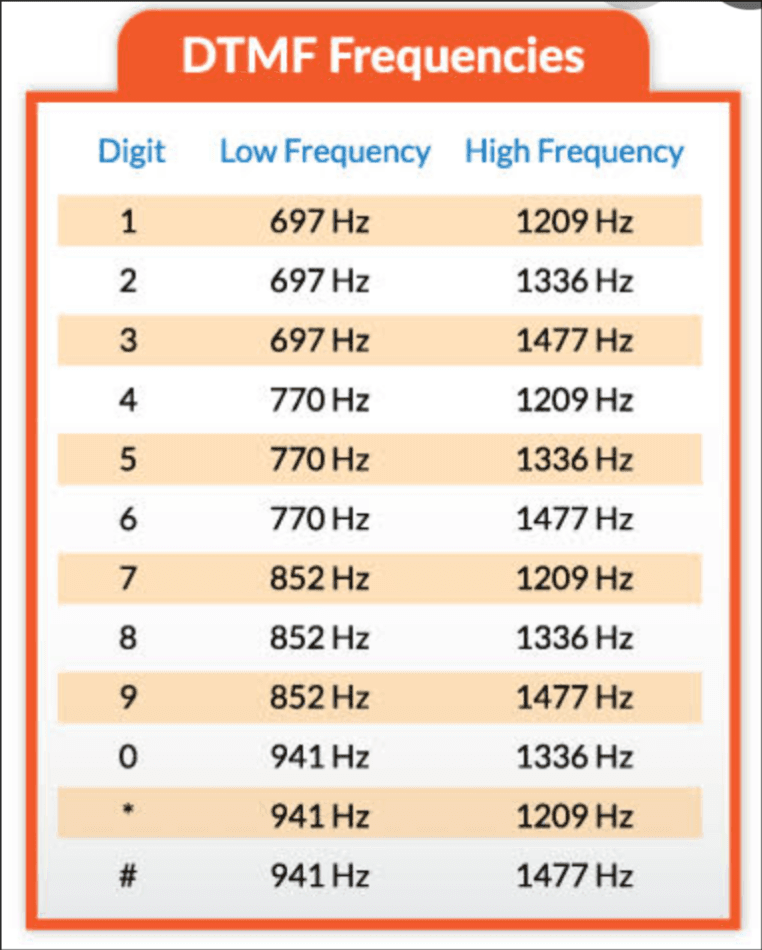
Hover over the two lines of a burst to read their frequencies, then look up the pair. The first burst, for example, sits at 770 Hz and 1209 Hz, which is the key 4. Going through all of them gives:
4 4 4 6 6 6 7 7 7 7 8 3 3 3
The bursts are grouped by the pauses between them, which will matter in the next step.
4. Typing like it is 2005
Now look at a phone keypad:
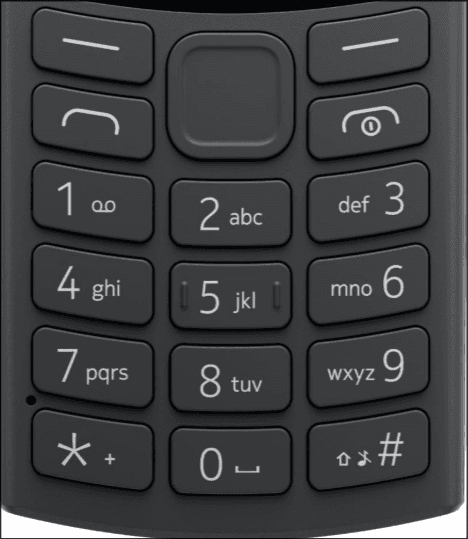
The digits are not a number. They are text typed the old way (multi tap): press a key once for its first letter, twice for the second, and so on. Each group of presses is one letter:
Flag: boo{ghosted}
2. Boo, Where?
Category: OSINT Difficulty: Medium
Identify the English name of the place shown in the image.
Flag format:
boo{name_of_the_place}Example:boo{vit_ap}
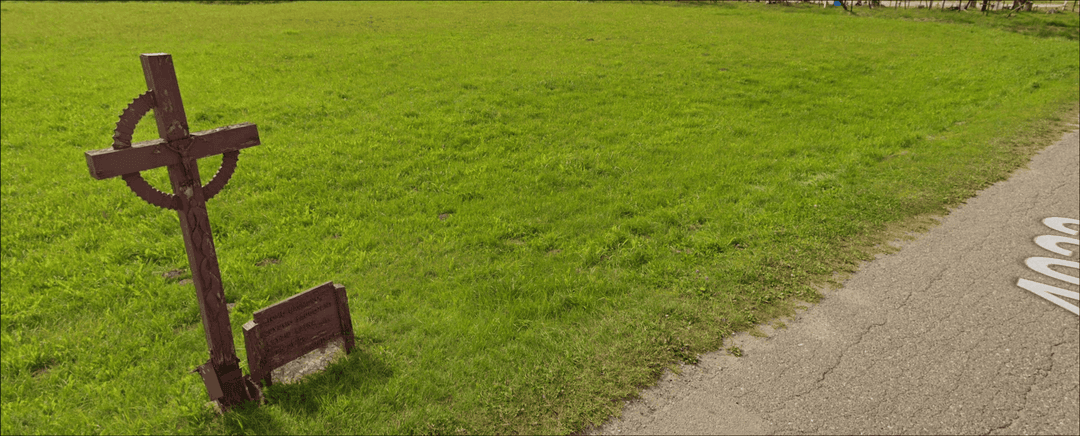
You are given only this image, so everything has to come from what is in it.
1. The elephant in the room
The first thing you notice is the cross. It is wooden and carved, with a decorative ring around the middle. Reverse image search it (Google Lens works) and you will find out that it is a Lithuanian cross. That gives you the country: Lithuania.
2. What kind of place is this?
Knowing the country is not enough, you still need the exact place. Look at the top right of the image. Past the grass there are a lot of more crosses lined up in the distance.

A field with rows of crosses means it is some kind of graveyard.
3. Search it
Now search for either lithuania graveyard or lithuania crosses. The top results are all of the same place:
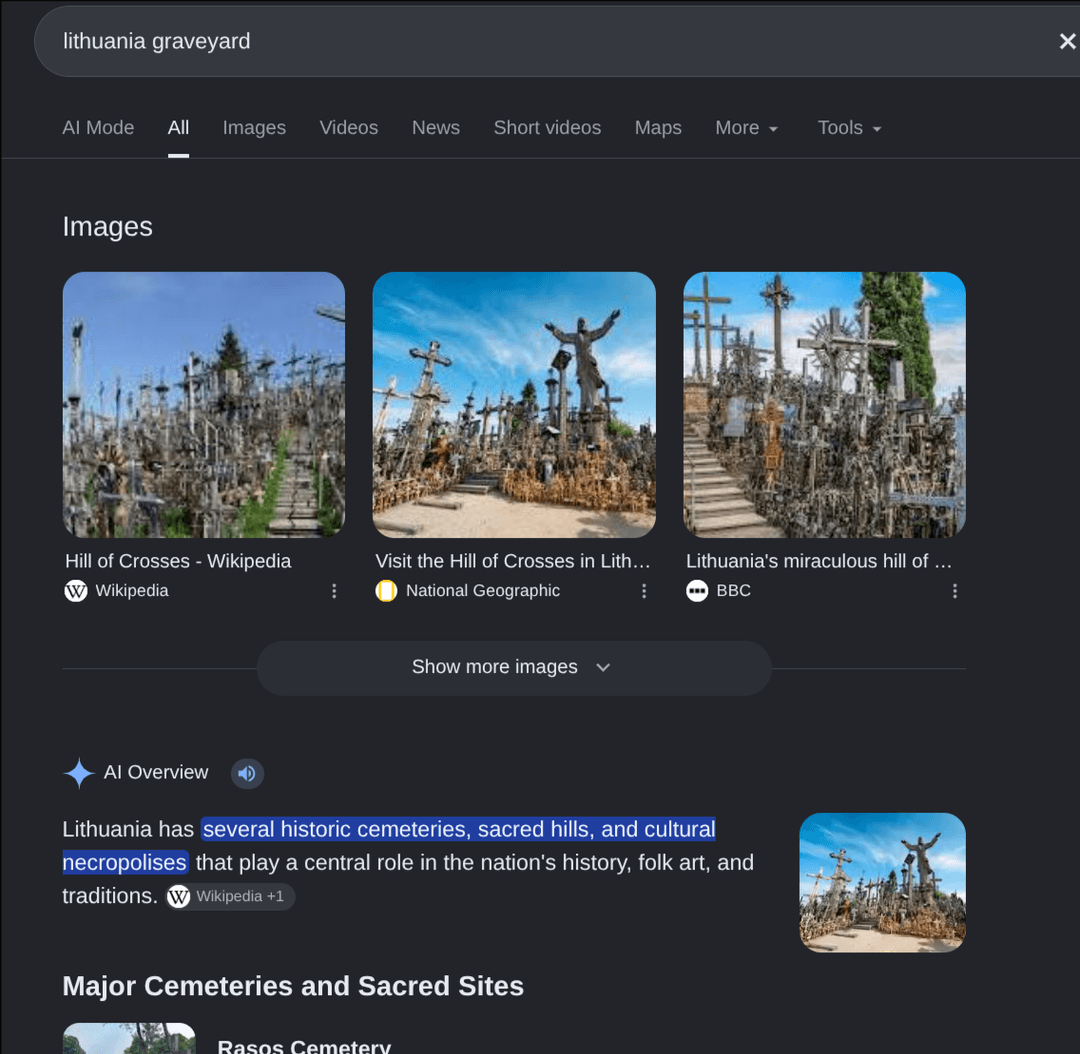
It is the Hill of Crosses.
4. Confirm it on Street View
To be sure, open the place on Google Maps and drop into Street View. Walk along the main road and you will find the exact same cross, with the same cross at its base and the same rows of crosses behind it:
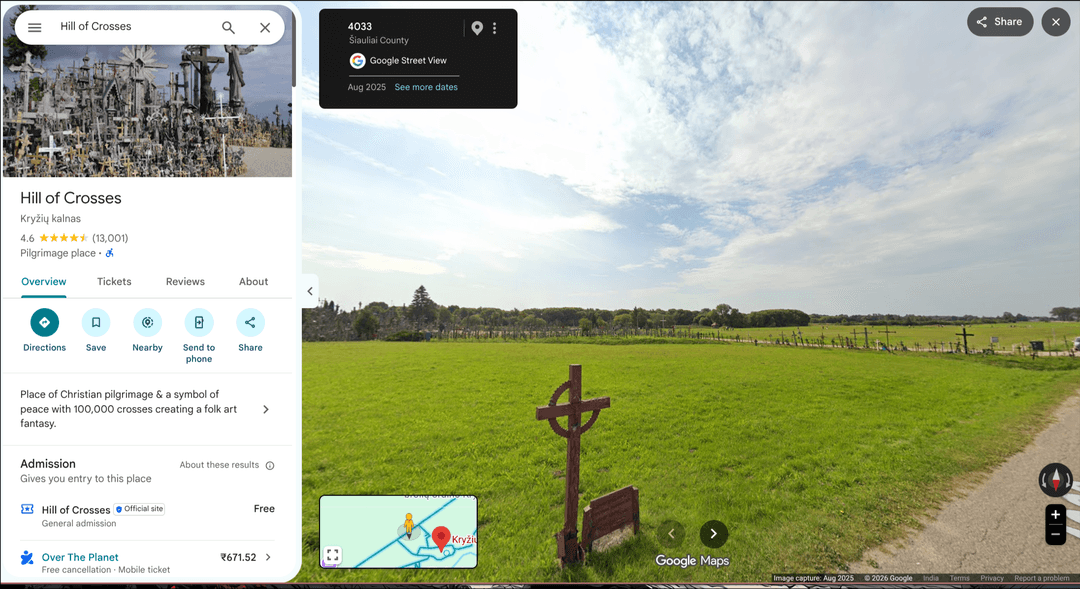
Flag: boo{hill_of_crosses}
3. Night Drive
Category: Stegnography Difficulty: Medium
Just a road, a forest, and whatever was waiting in the dark. Nothing unusual... at first glance.
Hint: The first part reveals a password...
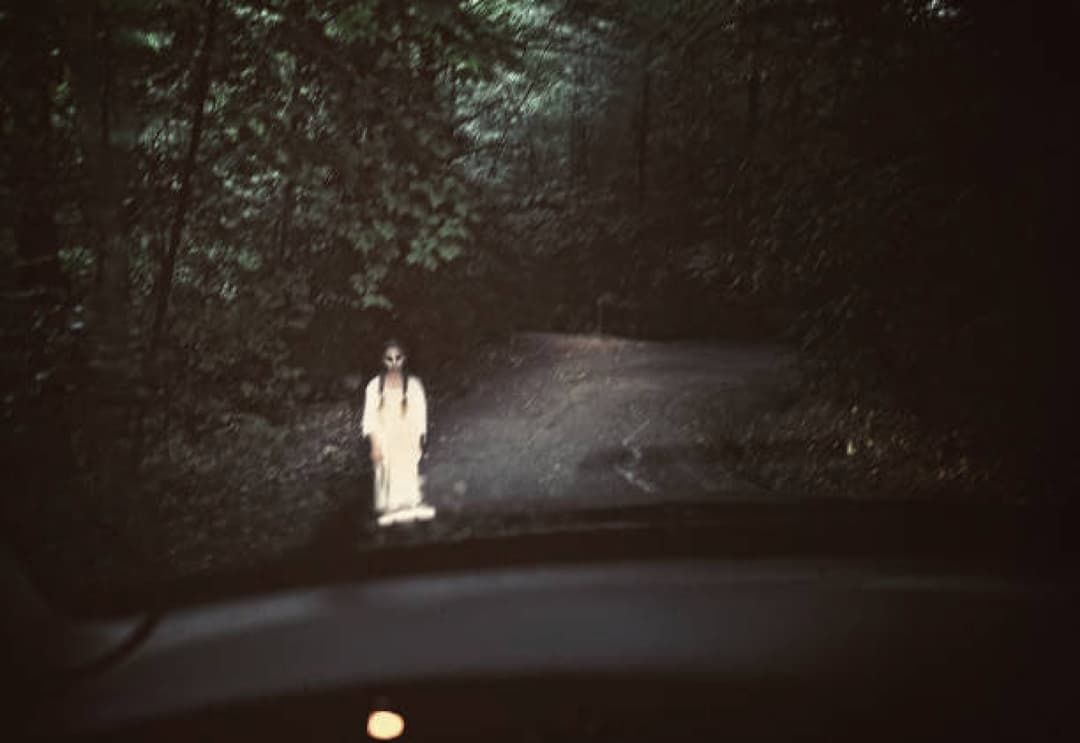
The file is stop_please.bmp, a dark forest road with a girl standing in the middle of it. The usual checks (file, exiftool, strings, binwalk) find nothing. The format is the only clue: BMP is uncompressed, so data hidden in the lowest bits of each pixel survives, which makes it a common choice for LSB stego. The hint also says the "first part" reveals a password, so there is more than one layer.
1. The password
Open the image in StegSolve and flip through the bit planes with the arrows at the bottom. On Red plane 0 (the least significant bit of the red channel) the password shows up in dripping blood: help_me.

Changing the last bit of a pixel only shifts its value by 1 out of 255, so the image looks untouched, but the bit plane shows the text clearly. You can also do this with a script that keeps only that bit and turns it into a black and red image:
from PIL import Image
import numpy as np

img = Image.open("stop_please.bmp").convert("RGB")
r = np.array(img)[:, :, 0]

bit = r & 1
out = np.zeros((*bit.shape, 3), dtype=np.uint8)
out[:, :, 0] = bit * 255
Image.fromarray(out, mode="RGB").save("r_channel.png")
The speckles around the text are noise from the next layer.
2. Steghide
A password on an image usually means steghide, and it supports BMP files. Using help_me as the passphrase:
steghide extract -sf stop_please.bmp -p help_me
It extracts img2.png. Opening it is a letdown, because it looks exactly like the original road.
3. The difference
The flag is in img2.png, but the text is only 4 brightness levels brighter than the pixels around it. That is impossible to see, especially on such a dark image. Since both images are the same picture, subtracting one from the other cancels the whole scene and leaves only the text. In StegSolve this is Analyse > Image Combiner with Sub, or in Python:
import numpy as np
from PIL import Image

a = np.array(Image.open("stop_please.bmp").convert("RGB")).astype(np.int16)
b = np.array(Image.open("img2.png").convert("RGB")).astype(np.int16)

diff = np.clip(b - a, 0, 255).astype(np.uint8)
Image.fromarray(diff).save("diff.png")
The result is almost pure black because the values are so small. Boost the contrast (GIMP levels, or multiply the array by around 60) and the flag appears:
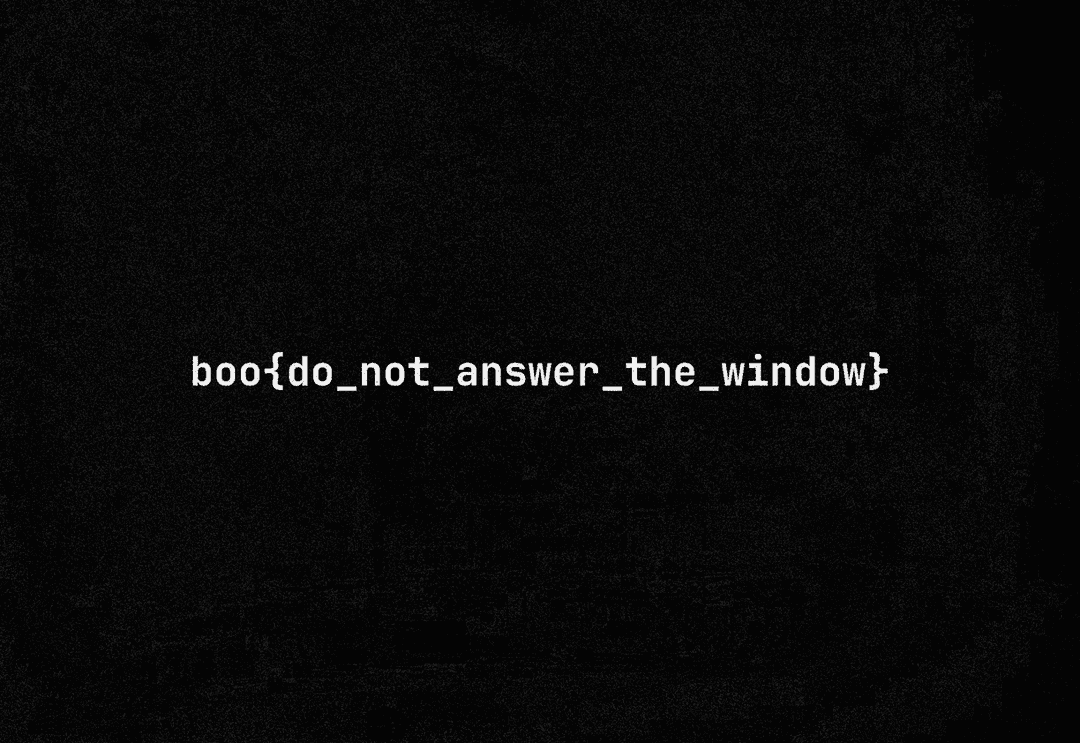
Flag: boo{do_not_answer_the_window}
4. Hidden In Plain Silicon
Category: Hardware
My chip has trust issues. Maybe you can get some extra secrets from it.
There is no file here, just a service you connect to with nc. It simulates an AT28C64B, a small parallel EEPROM, and you are the one wiring its pins. Connecting prints the pinout and tells you to wire the pins with SET and then READ.
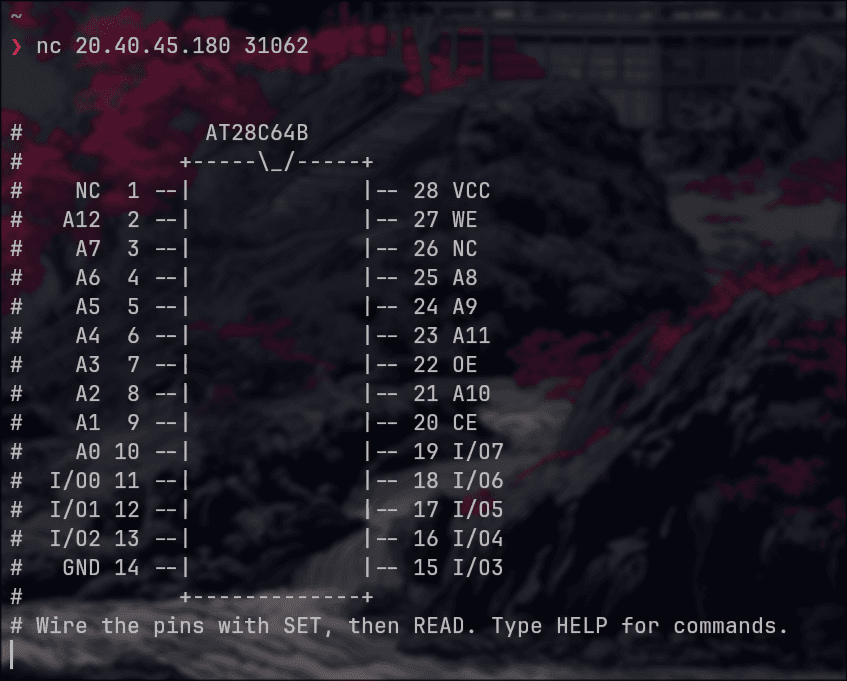
The commands are SET <pin> <volts> (several pins at once also work, like SET A6,A7 5 or SET A6-A12 5), READ and STATUS. Only 0, 5 and 12 volts are accepted, and 12 is only allowed on a couple of pins. That already hints that 12V matters somewhere.
1. The datasheet
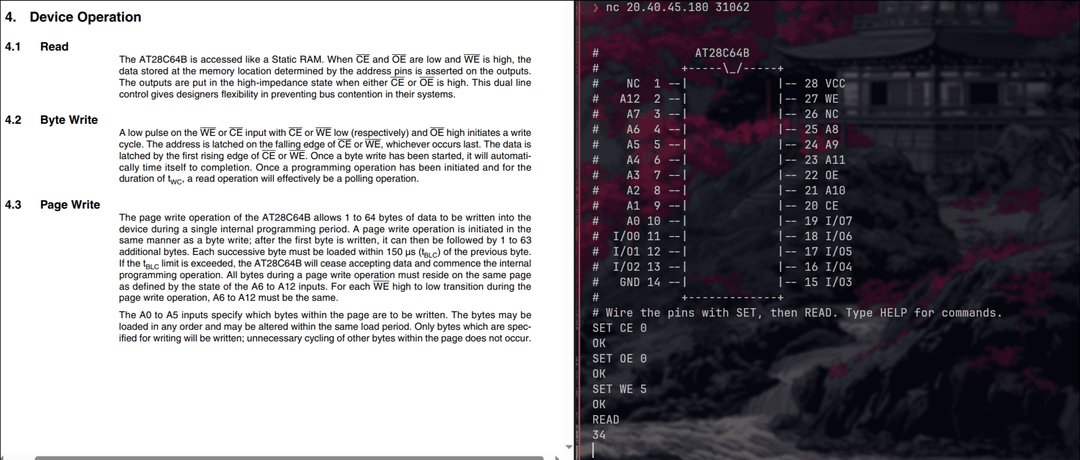
The next step is to find the datasheet for the chip. Section 4.1 says a read needs CE and OE low and WE high, which here means:
SET CE 0
SET OE 0
SET WE 5
After that, READ gives you the byte at whatever address is on the A0 to A12 pins. Change the address and you get other bytes, but they are all junk. The normal memory is not where the secret is.
2. The extra secrets
The challenge says "extra secrets", and the datasheet's description mentions an extra 64 bytes of EEPROM for device identification. Section 4.7 explains how to get to it:
By raising A9 to 12V ±0.5V and using address locations 1FC0H to 1FFFH, the additional bytes may be written to or read from in the same manner as the regular memory array.
So the plan is to keep A9 at 12V and read the 64 bytes from 0x1FC0 to 0x1FFF.
3. Reading it
0x1FC0 in binary is 1 1111 1100 0000, so A6 to A12 are high and A0 to A5 are low. A9 is one of the high bits, but we drive it with 12V instead of 5V. The chip still counts it as a high address bit, and the extra voltage is what opens the identification area:
SET A9 12
SET A6,A7,A8,A10,A11,A12 5
READ
The byte that comes back is no longer junk. To get the next one, count up on the low address pins (SET A0 5 for 0x1FC1, then SET A0 0 and SET A1 5 for 0x1FC2, and so on). That is 64 reads, so I scripted it. The script sets all the address pins from a counter, leaves A9 at 12V, reads each byte and decodes the result as ASCII:
import socket

f = socket.create_connection(("HOST", PORT)).makefile("rw", newline="\n")

def cmd(line):
    f.write(line + "\n")
    f.flush()
    while True:
        r = f.readline().strip()
        if not r.startswith("#"):
            return r

# wait for the banner to finish
while not f.readline().startswith("# Wire the pins"):
    pass

for pin, v in (("CE", 0), ("OE", 0), ("WE", 5), ("A9", 12)):
    cmd(f"SET {pin} {v}")

data = bytearray()
for addr in range(0x1FC0, 0x2000):
    for bit in range(13):
        if bit != 9:  # keep A9 at 12V
            cmd(f"SET A{bit} {5 if addr >> bit & 1 else 0}")
    data.append(int(cmd("READ"), 16))

print(data.rstrip(b"\x00").decode())
Flag: boo{a9_got_a_promotion}
Reference: YouTube video
5. Copy Pasta, Paste Ghosta
Category: Miscellaneous Difficulty: Easy
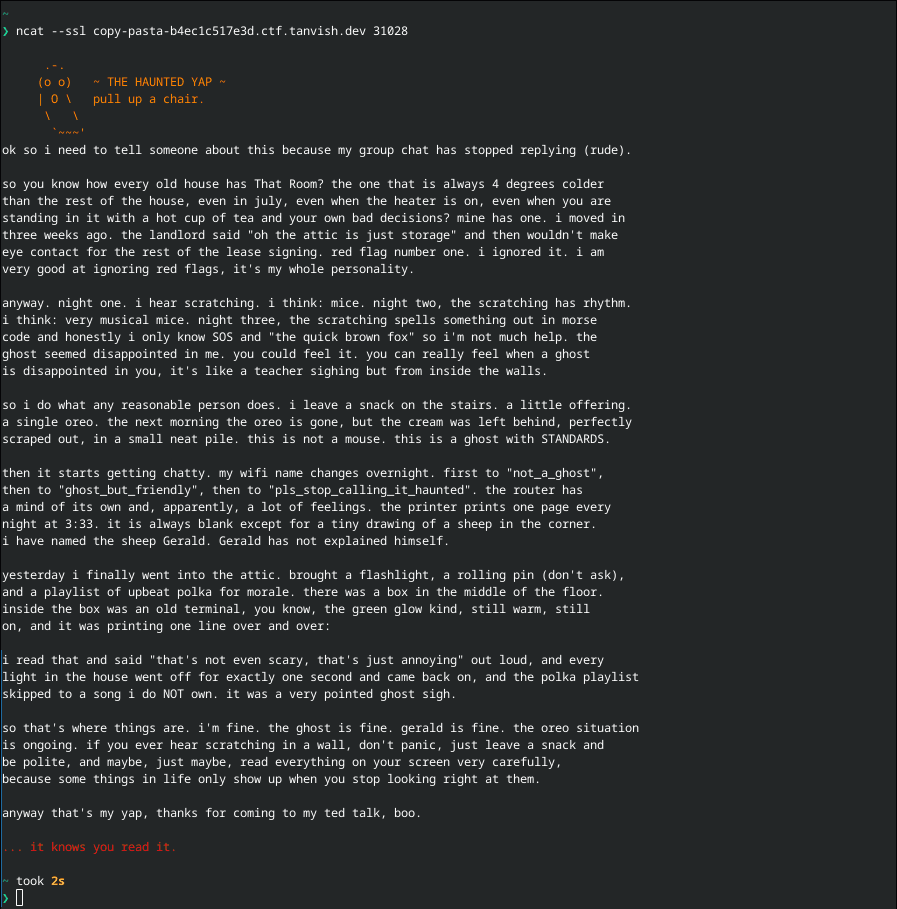
Another service you connect to with ncat --ssl. It prints a long, rambling ghost story and then ends with "... it knows you read it."
1. Something is missing
Reading carefully, there is a suspicious line: "it was printing one line over and over:" and then nothing. The ghost is clearly trying to show you something, but the terminal shows a blank space. The flag is on that line, hidden.
2. Copy it somewhere else
The first layer is hidden with ANSI escape codes (black on black text plus the "conceal" attribute). The terminal respects those, but they are not part of the text itself. So select everything, copy it and paste it into any editor. The start of the flag now shows up:
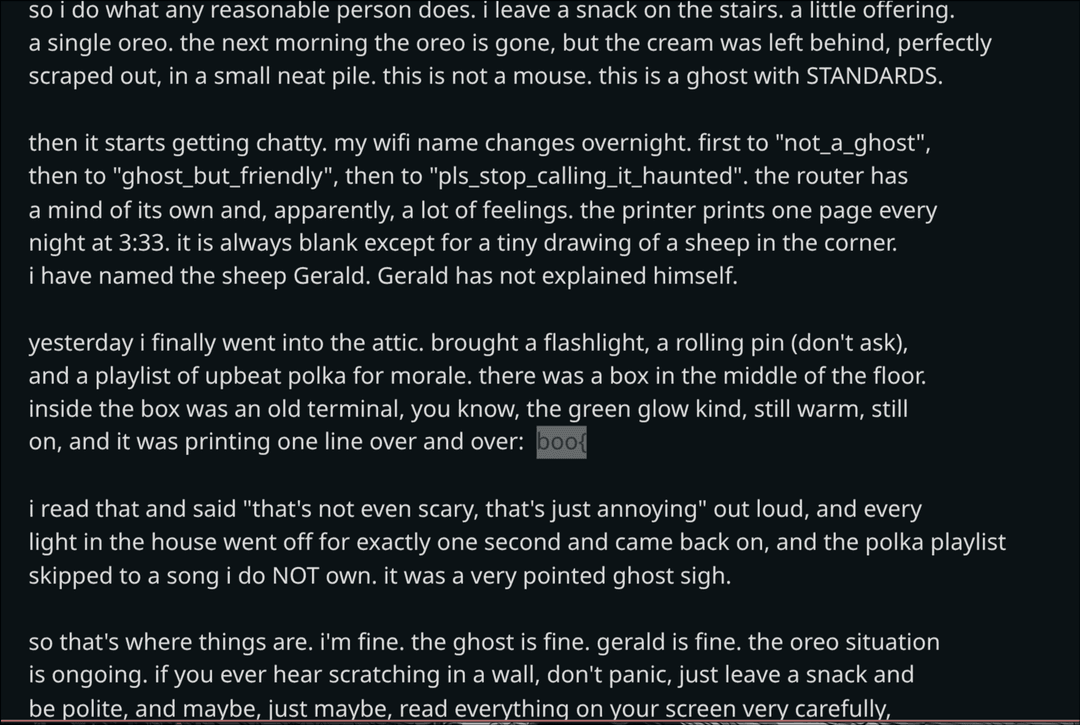
You get boo{, and nothing after it. That means the rest is hidden in a different way, and something is still in the text that you cannot see.
3. Look at what cat shows
You can check what is actually being sent by piping the output through cat -v, which prints non-printing characters in a readable form:
ncat --ssl HOST PORT | cat -v
On the flag line you will see the escape codes (^[[30;40m^[[8m) that hid boo{. Right after them there is a long run of strange M-sM- M-^A... groups. Those are bytes of UTF-8 characters that the terminal does not display. They all start with the same prefix, which means they are the same kind of character, in a row.
4. Reveal the invisible characters
Paste the copied text into an invisible unicode viewer (there are plenty online). It finds 23 invisible characters, all from the Unicode Tag block (U+E0000), and shows what they spell:
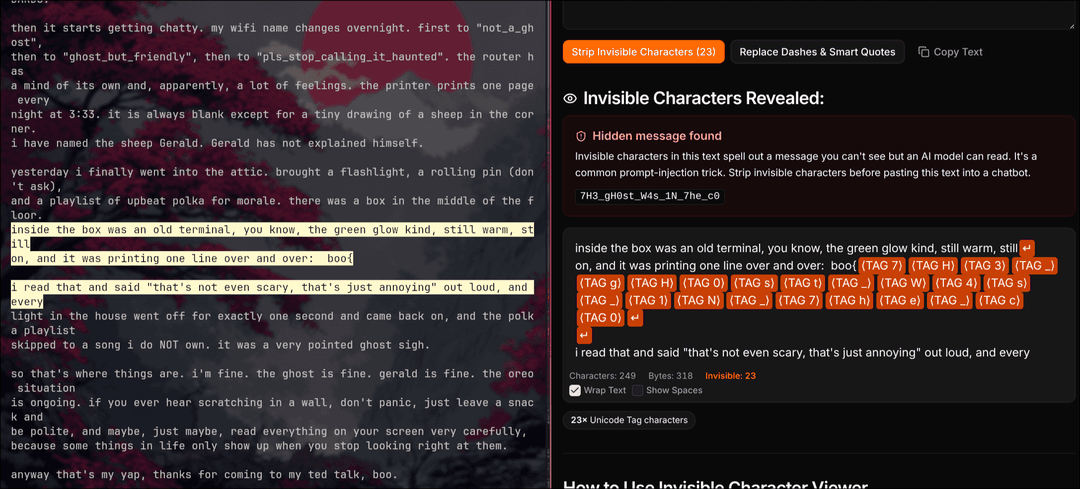
Flag: boo{the_gh0st_w4s_1n_the_c0py_buff3r}